How to Take Passport Photo at Home
Complete step-by-step guide to taking clean passport photos at home using your smartphone, with lighting, background, camera, and crop tips.
Taking passport photos at home is easy, low-cost, and can produce clean results when the setup is controlled. With the right lighting, distance, and crop, you can prepare a passport-style photo in minutes.
The secret is not fancy gear. A steady phone, a clean background, and even lighting matter far more than the camera brand. If you treat the photo like an ID image rather than a casual selfie, you will usually get a much better result on the first try.
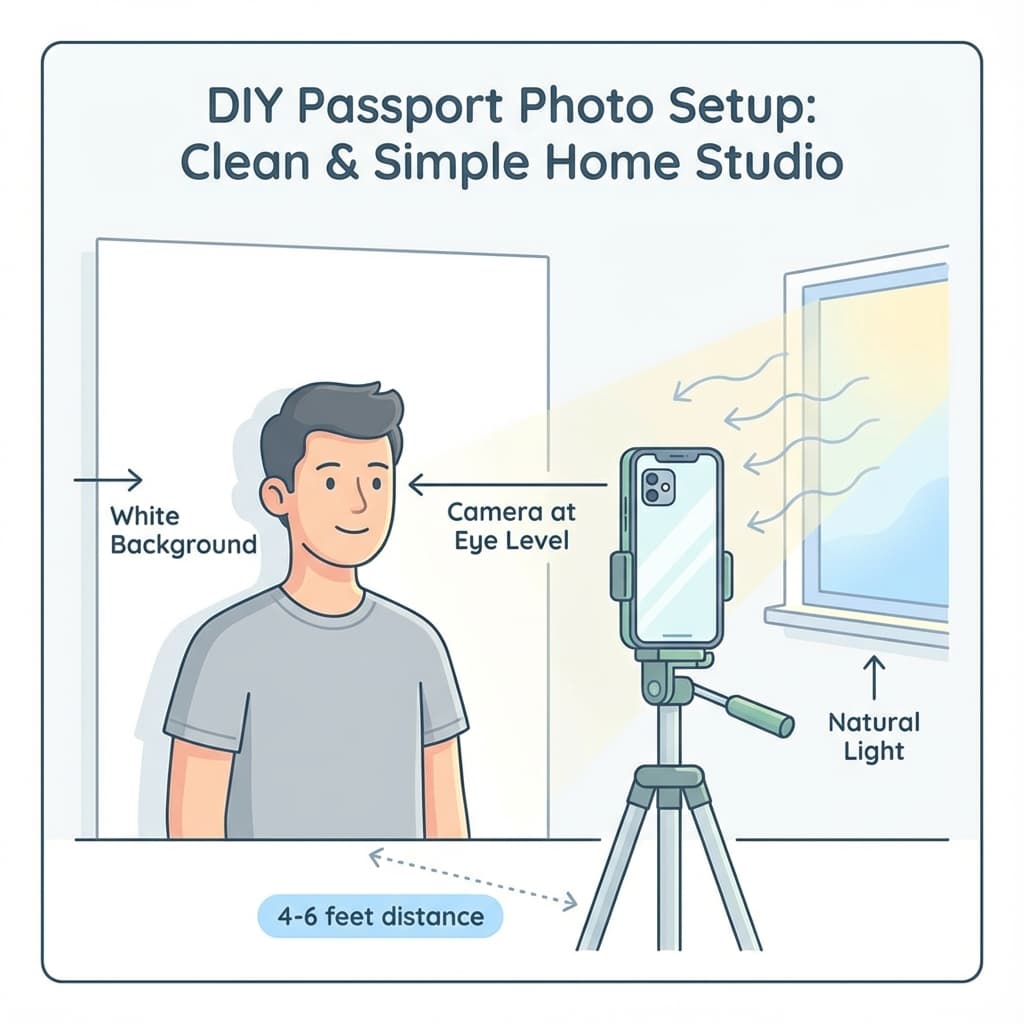
What You Need
- Smartphone with 8MP+ camera (most modern phones work)
- White background - wall, sheet, or poster board
- Good lighting - natural daylight or bright room light
- Tripod or stand (optional but helpful)
- Someone to help - or a timer/tripod setup
Quick Tip
Don't worry about perfect cropping in the camera - PassportSizePhoto.in can crop, resize, and export your photo after you capture a clean source image.
Setting Up Your Space
Background Options
You need a plain white background with no patterns or shadows:
- White wall: The easiest option if you have one
- White bedsheet: Iron it first to remove wrinkles
- White poster board: Available at any stationery shop
- Digital removal: Take photo against any background and use our tool to replace it
Before you shoot, clear the area behind you, remove visible furniture edges, and check that no colorful objects are bouncing light back onto the wall. A simple setup often looks the most professional because it keeps attention on your face.
Distance from Background
Stand 1-2 feet away from the background. This prevents:
- Shadows falling on the background
- Wrinkles or textures being visible
- Background appearing grey instead of white
Lighting Tips
Good lighting is the most important factor for a professional-looking photo.
Aim for light that is soft, even, and coming from the front. If one side of your face is brighter than the other, the image will look uneven and may be rejected for shadow issues.
Best Lighting Setup
- Natural daylight: Face a window for soft, even lighting
- Overcast day: Actually ideal - no harsh shadows
- Time of day: Morning or afternoon (not direct noon sun)
Avoid These Lighting Mistakes
- ❌ Direct sunlight (creates harsh shadows)
- ❌ Overhead-only lighting (shadows under eyes and nose)
- ❌ Backlighting (face appears dark)
- ❌ Mixed lighting (different color temperatures)
Pro Tip
Use a white reflector (or even a white towel) held below your chin to fill in shadows under eyes and nose.
Camera Settings
Smartphone Settings
- Use rear camera: Better quality than front camera
- Highest resolution: Check settings for maximum quality
- No filters: Turn off beauty mode and all filters
- No flash: Flash creates harsh shadows and red-eye
- Portrait mode: Turn OFF - you want sharp background
Focus and Exposure
- Tap on the face to focus
- Adjust exposure if face is too dark or bright
- Enable gridlines for better alignment
Phone camera checklist
Use the main rear camera, stand 4-6 feet away, keep the phone at eye level, and turn off portrait mode, flash, beauty filters, and ultra-wide lenses. If you are alone, use a timer and prop the phone on a stable surface.
Positioning Yourself
| Distance from camera | 4-6 feet (1.2-1.8 meters) |
| Camera height | Eye level |
| Face direction | Straight at camera |
| Expression | Neutral, mouth closed |
| Eyes | Open and looking at lens |
| Head | Straight, not tilted |
Ask the person taking the photo to step back far enough that your shoulders and head are fully visible. That extra distance reduces distortion and makes cropping much easier later.
Taking the Photo
- Position yourself with background and lighting set up
- Have someone else hold the phone at your eye level
- Look directly at the camera lens
- Relax your face - neutral expression, not smiling
- Keep shoulders straight
- Take multiple shots - you can choose the best one
Using a Timer
If taking the photo alone, use a tripod or prop up your phone. Set a 10-second timer, position yourself, and take multiple shots.
Editing & Formatting
After taking your photo, you need to format it to exact passport specifications:
- Upload to PassportSizePhoto.in
- Automatic processing: Background removal, cropping, sizing
- Download: Get print-ready and digital versions
Or manually edit (not recommended - easy to make mistakes):
- Crop to correct aspect ratio
- Resize to 35×45mm (630×810 pixels)
- Adjust brightness/contrast if needed
- Remove background imperfections
A good final check is to zoom in and inspect the eyes, hairline, and chin area. If the face looks soft, the background is not pure white, or the crop feels tight, retake the photo before submitting.
Final Upload Checklist
Before you upload or print, confirm:
- • The face is centered, sharp, and looking directly at the camera
- • The background is clean and free from visible shadows or objects
- • The crop leaves enough room above the head and around the shoulders
- • The photo does not have filters, retouching, or skin-smoothing effects
- • The final file matches the requested size and format
This checklist is helpful because passport photo mistakes often come from a photo that looks okay at a glance but fails once it is submitted. Taking one extra minute here is usually faster than redoing the whole setup later.
When You Should Retake the Photo
Retake the image if any of these problems show up:
- The face is slightly blurry or out of focus
- The background has visible grey patches or shadows
- The head is too low, too high, or tilted
- The lighting makes one side of the face look much darker
- The expression looks forced instead of neutral
People often try to save a weak photo with editing, but a clean retake is usually the better choice. Original quality gives you more flexibility later, especially if you need to create both a printed sheet and a digital upload.
Common Mistakes to Avoid
- Using front camera (lower quality, distortion)
- Standing too close to background (shadows)
- Using flash (harsh lighting, red-eye)
- Beauty filters enabled (alters face shape)
- Wearing glasses (not allowed for most visas)
- Smiling or tilted head
If you are unsure about a rule, err on the side of simplicity. Neutral expression, plain background, and uncluttered framing are accepted more often than creative poses or stylistic edits.
Frequently Asked Questions
Can I use my phone for passport photos?
Yes! Modern smartphones with 8MP or higher cameras can take passport-quality photos. Use the rear camera for best quality.
What background can I use at home?
A plain white wall, white bedsheet, or white poster board works well. Ensure it is evenly lit without shadows.
Do I need professional lighting?
No. Natural daylight from a window is ideal. Avoid direct sunlight which creates harsh shadows.
Can I take a selfie for passport?
It is not recommended. Selfies often have distortion and the front camera quality is lower. Have someone else take your photo.
How do I remove the background?
Use PassportSizePhoto.in to replace the background with a clean white or light background, then review the final result before submission.
What if my photo is rejected?
Common rejection reasons include wrong background, shadows on face, glasses glare, or incorrect dimensions. Our tool helps avoid these issues.
Next practical step
After reading the guide, open the matching tool or reference page so capture, crop, upload, and print prep stay in the right order.
Create Your Passport Photo
Make a 35x45mm photo, download a digital file, or create a print-ready sheet.
Create Photo Free →