Passport Photo Editing Rules
Complete guide to what photo editing is allowed for passport photos. Learn the difference between acceptable adjustments and prohibited alterations that will get your photo rejected.
Understanding Photo Editing Rules
In the age of smartphone cameras and easy photo editing apps, it is tempting to touch up your passport photo before submission. But not all edits are created equal. Some adjustments are perfectly acceptable, while others will get your application rejected.
The fundamental rule is simple: your passport photo must accurately represent your current, natural appearance. Edits that improve photo quality without changing how you look are fine. Edits that alter your appearance are not. This guide explains exactly where that line is drawn.
Think of editing as cleanup, not transformation. The safest edits correct technical issues such as bad lighting, background color, size, and file format. The risky edits are the ones that make your face look smoother, thinner, younger, or different from the person standing in front of the camera.
Why These Rules Exist
Passport photos are used for identity verification at airports, borders, and government offices worldwide. If your photo does not look like you, it defeats the purpose of identification and can cause serious problems during travel.
Allowed Edits
These edits are considered technical improvements that do not alter your appearance:
If the edit helps the document look clearer but does not change identity, it is usually the right kind of edit. The photo should still look honest, natural, and easy to compare against your actual face.
A good test is to ask whether the edit would still make sense if someone printed the photo and held it beside you in a waiting room. If the answer is yes, the change is probably acceptable. If the photo starts looking like a different person, it has gone too far.
Acceptable Adjustments
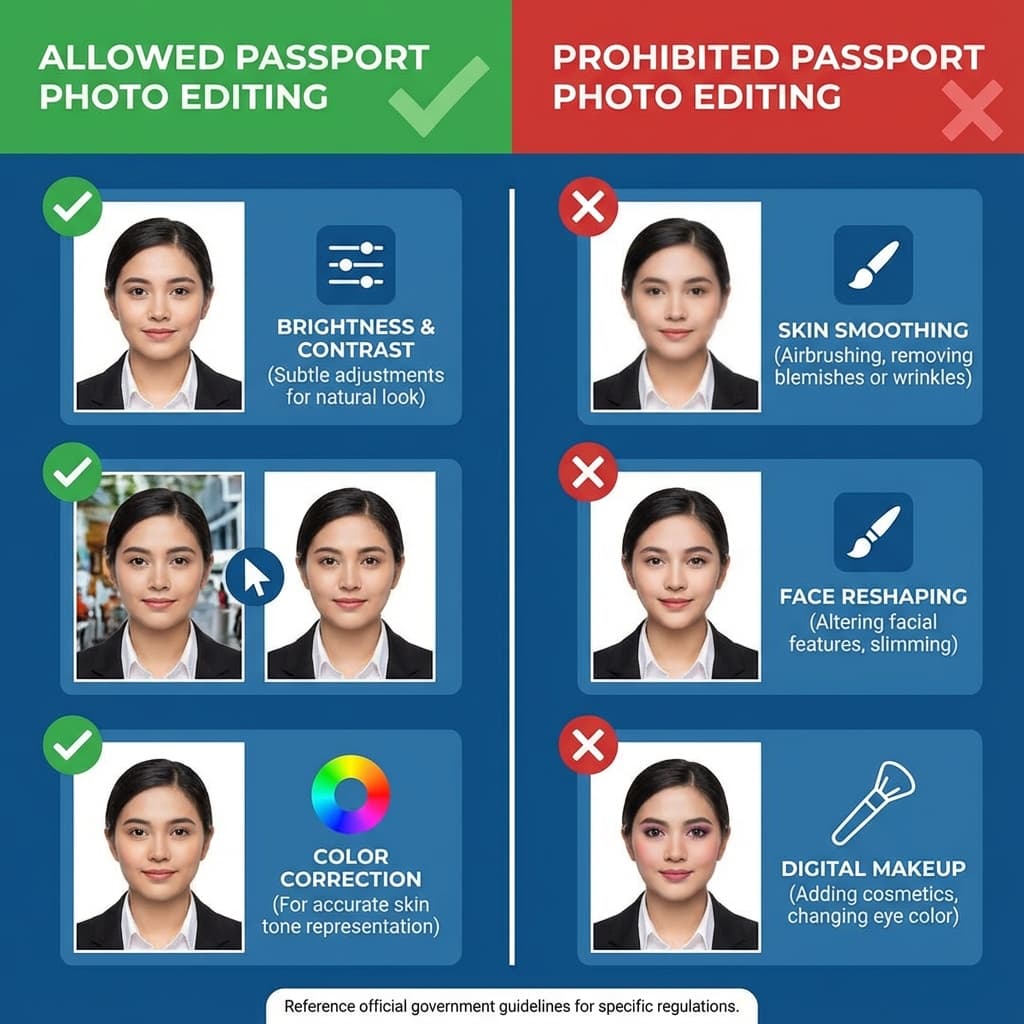
Prohibited Edits - Will Be Rejected
These edits alter your appearance and will result in photo rejection:
Anything that changes the way your face is shaped, smoothed, brightened, or stylized is too much. If you would not want a border officer to notice the difference immediately, that is a sign the edit is probably not acceptable.
Prohibited Alterations
The Gray Area - Use Caution
Some edits fall into a gray area where the acceptability depends on the degree:
This is where many people make mistakes. A tiny correction can be fine, but the same tool set to a stronger level can cross the line. When in doubt, keep the adjustment subtle and avoid anything that changes the overall face shape or skin texture.
Proceed With Caution
- Blemish removal: Temporary pimples are okay to remove. Permanent moles or scars must stay. When in doubt, leave it in.
- Skin tone correction: Fixing odd color casts from lighting is fine. Changing your natural skin color is not.
- Sharpening: Light sharpening for clarity is okay. Heavy sharpening that creates unnatural edges is not.
- Whitening: Slight white balance correction is okay. Making skin unnaturally pale or bright is not.
Background Editing
Background editing is one of the most common and fully acceptable types of passport photo editing:
In fact, background cleanup is often the most useful edit because it solves a technical issue without changing who you are. A plain white background helps the face stand out cleanly and also keeps the image aligned with common passport requirements.
- Background removal: Removing your original background and replacing it with white is perfectly acceptable.
- Shadow removal: Removing shadows on the background is encouraged.
- Background color: Changing to pure white (#FFFFFF) or off-white is standard practice.
Automatic Background Removal
PassportSizePhoto.in automatically removes backgrounds and replaces them with the correct white color. This is the safest way to achieve a compliant background without manual editing.
If your original photo already has a white wall, that is even better. The less editing you need to do, the lower the chance that you accidentally introduce halos, uneven edges, or a fake-looking cutout around the hair and shoulders.
Color Correction Guidelines
When adjusting colors in your passport photo, follow these guidelines:
The best color correction is invisible. If someone can tell the photo has been heavily edited, the adjustment has gone too far. Keep the skin tone realistic, the whites neutral, and the overall image balanced rather than dramatic.
White Balance
If your photo has an orange (tungsten) or blue tint due to lighting, correcting this to neutral colors is acceptable and recommended.
Exposure
Slightly adjusting exposure so your face is clearly visible is fine. Do not overexpose (too bright) or underexpose (too dark).
Saturation
Minor saturation adjustments to achieve natural colors are okay. Do not oversaturate to make colors pop unnaturally.
Shadows and Highlights
Lifting shadows on your face for better visibility is acceptable. Avoid creating an artificial, flat-lit look.
File Size and Format Optimization
For online submissions, you may need to optimize your photo file:
File optimization is not cosmetic editing. It is a practical step that helps the portal accept your photo without changing how you look. The trick is to reduce the file size while keeping enough detail for the face, hair, and background to stay sharp.
- Compression: Reducing file size to meet upload limits (typically 20-200 KB) is necessary and acceptable.
- Format conversion: Converting to JPEG from other formats is standard.
- Resizing: Adjusting pixel dimensions to meet requirements is expected.
- Quality balance: Find the smallest file size that maintains clear image quality.
If the file starts to look blurry after compression, step back and try a slightly larger size. A passport photo that is technically valid but visually mushy is still likely to create trouble during review.
It can help to keep one master copy in full quality and create smaller upload versions from that original. That way you can re-export the file if the portal rejects the first attempt without having to rebuild the photo from scratch.
Recommended Editing Tools
Use these tools for safe, compliant passport photo editing:
Good editing tools should make the process easier, not tempt you into overdoing it. The simplest workflow is often the best one: correct the background, fix basic exposure, crop to size, and stop there.
Safe Tools
- ✅ PassportSizePhoto.in— Automatically applies only compliant adjustments
- ✅ Basic photo editors — Windows Photos, macOS Preview for simple adjustments
- ✅ Adobe Lightroom — For controlled color and exposure correction
Tools to Avoid for Passports
- ❌ Instagram/Snapchat filters — Apply hidden beauty adjustments
- ❌ FaceTune — Designed for cosmetic alterations
- ❌ Beauty cam apps — Automatically smooth and alter faces
- ❌ AI enhancement tools — Often change facial features
If a tool promises to make you look better, slimmer, or more glamorous, it is usually the wrong tool for a passport photo. The goal is compliance and clarity, not a beauty edit.
Frequently Asked Questions
Can I use beauty filters on my passport photo?
No, beauty filters are strictly prohibited for passport photos. These filters alter your facial features, skin texture, and proportions, which violates the requirement that your photo must accurately represent your natural appearance. Using beauty filters will likely result in rejection.
Can I adjust brightness and contrast?
Yes, minor brightness and contrast adjustments are acceptable and often necessary to achieve a clear, well-lit photo. The goal is to ensure your face is evenly lit and clearly visible. Do not over-process to the point where the photo looks unnatural.
Can I remove pimples or blemishes?
Minor, temporary blemishes like pimples can be removed. However, permanent features such as moles, scars, birthmarks, or other identifying features must remain visible. These features help verify your identity.
Is it okay to whiten teeth in passport photos?
Teeth whitening is not recommended since passport photos require a neutral expression with mouth closed. If your mouth is slightly open, any teeth editing would be considered cosmetic alteration and should be avoided.
Can I remove red-eye from passport photos?
Yes, red-eye removal is allowed and even recommended. Red-eye is a camera flash artifact, not your natural eye color. Removing it restores the natural appearance of your eyes and is considered a technical correction.
Can I change the background color myself?
Yes, background removal and replacement with white is acceptable and commonly done. Many DIY passport photo tools like PassportSizePhoto.in automatically remove backgrounds and replace them with the required white background.
Can I slim my face or change my appearance?
No, any editing that changes your facial structure, proportions, or features is prohibited. This includes face slimming, jaw reshaping, nose modifications, or any alterations that make you look different from your real appearance.
What about sharpening the photo?
Light sharpening to improve clarity is acceptable. However, heavy sharpening that creates unnatural edges or halos around features should be avoided. The photo should look natural, not heavily processed.
Can I add makeup digitally?
No, adding makeup digitally is not allowed. Your passport photo should show your natural appearance. If you want to wear makeup, apply it before taking the photo rather than editing it in afterward.
What happens if I submit an over-edited photo?
If authorities detect significant editing that alters your appearance, your photo will be rejected. This can delay your passport application by weeks. In some cases, intentionally submitting an altered photo could be considered document fraud.
Skip Manual Editing - Use Our Tool
Our tool automatically applies only compliant adjustments to your photo.
Create Compliant Photo Free →Next practical step
After reading the guide, open the matching tool or reference page so capture, crop, upload, and print prep stay in the right order.
Create Your Passport Photo
Make a 35x45mm photo, download a digital file, or create a print-ready sheet.
Create Photo Free →